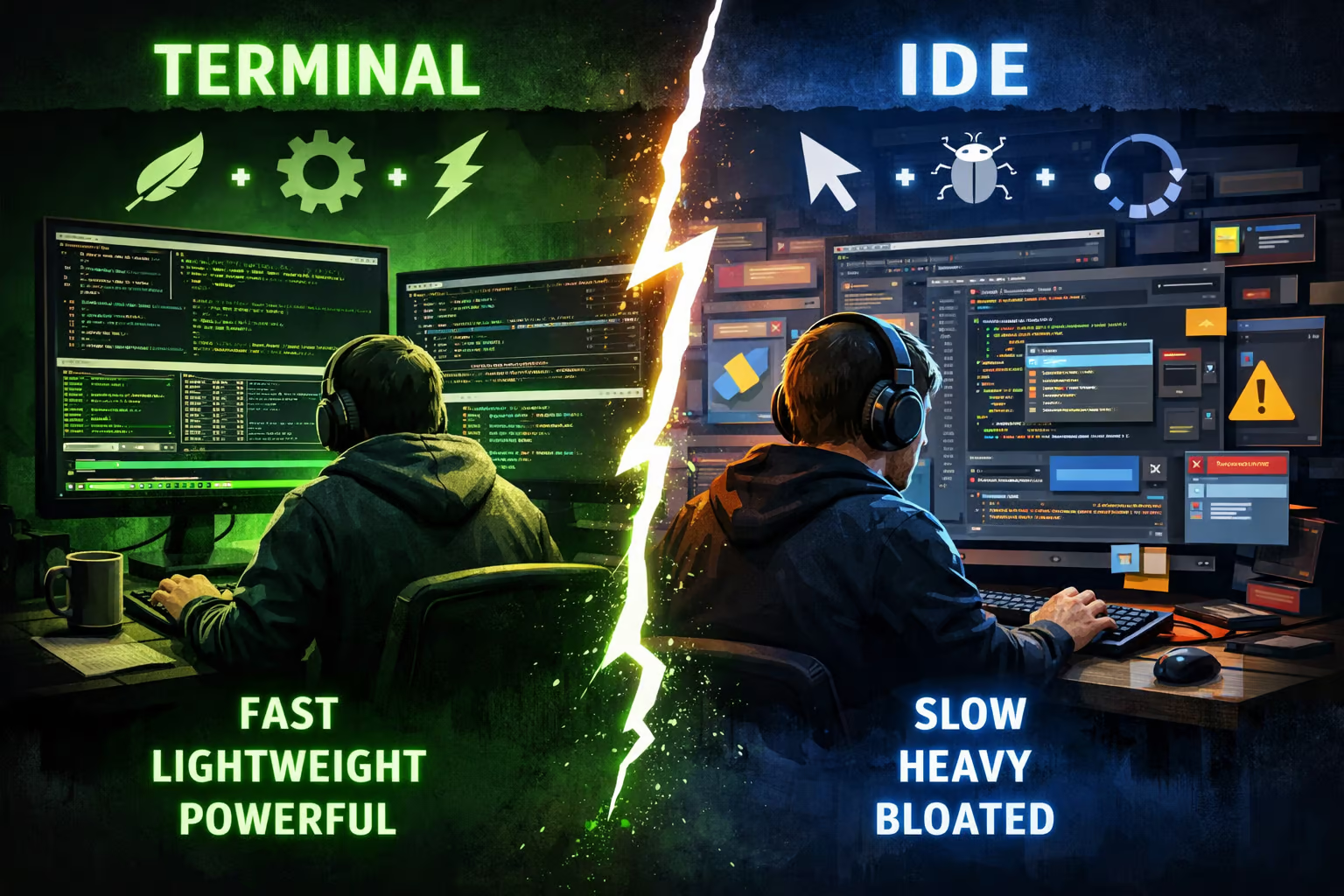
IDEs are the default choice for most developers, and for good reason. They bundle editing, diagnostics, builds, testing, search, and integrations like Git or HTTP clients into a single, polished application. Install it once, open a project, and you’re productive immediately.
That convenience comes at a cost.
Modern IDEs are heavy, opinionated systems. They decide how tools fit together, which workflows are first-class, and how much you can customize before you hit a wall. Over time, you end up using a small slice of a very large application, while paying the performance and complexity cost of the whole thing.
I’ll be honest: I’m a bit of a nerd when it comes to tools. I've always been drawn to Vim, CLI workflows, and minimalist setups. I know most developers aren't like that, and that’s fine. But it still surprises me how many engineers I respect (people who are clearly great at what they do) don’t invest much effort in customizing the tools they use for hours every day.
I like keeping things simple. If a tool does one thing really well and can last for decades, I'd rather use that than something that's "good enough", trending, and packed with a hundred extra features. That's why I prefer mechanical keyboards, wired connections at my desk, and open source software. I'd rather avoid connectivity issues, battery degradation, and closed systems that lock you in.
More than anything, I value customization that allows to strip tools down to what I need and let me automate the things I find myself doing repeatedly.
For that reason, IDEs started to feel frustrating. I eventually switched to using the terminal exclusively and I've never looked back.
If you mostly reach for the terminal only when there’s no GUI alternative, you're leaving a lot of power on the table.
The terminal is not a relic of the past
For many developers, the terminal is seen as a tool of the past, something you only use when there isn't a graphical alternative available.
In my opinion, that mindset is a limiting factor.
The terminal is arguably the best interface we've ever built between humans and computers. It is:
- Older than almost every modern GUI paradigm, and still relevant. It is likely to outlast most graphical interfaces.
- Extremely flexible. Designed from the ground up to be scriptable.
Let’s break this down.
The terminal is future-proof
Terminals have existed since the earliest days of computing. While their appearance has evolved, the core interaction model has remained remarkably stable.
Text-based interfaces have some powerful advantages:
- They are simple to build and document
- They are easy to automate
- They work locally, remotely, and over low-bandwidth connections
- They are stable over time
A shell script written today has a good chance of still working ten or twenty years from now. Compare that with a GUI workflow that depends on a specific IDE version, plugin ecosystem, or operating system.
This is also why most modern development tools (like AI agents) offer a cli first, and maybe some GUI later.
The terminal is flexible and scriptable
One of the terminal's biggest strengths is that it acts as an integration layer for other programs.
You can take the output of one program and feed it directly into another, creating pipelines of behavior that rival small programs, without writing a single line of “real” code.
For example:
rg "TODO" | sort | uniq -c | sort -nrThis simple pipeline searches for TODO comments, groups them, counts them, and sorts them by frequency.
Each tool does one thing well. Together, they form something more powerful than most single-purpose GUI tools.
This composability is difficult to replicate in graphical environments, where integrations are often bespoke, brittle, or entirely unavailable, but this is where the terminal really shines.
The shell is an interpreter, and most terminal programs expose well-defined interfaces that can be manipulated programmatically. That means you, the user, can add new functionality by writing small scripts and composing existing tools.
Want a custom command that:
- prompts for a branch name.
- opens a dialog to select a branch to branch from.
- Creates a branch and git worktree.
- Creates a new session and switches to it.
You don't wait for a plugin. You write a script combining git, fzf and tmux.
This flips the traditional IDE model on its head. Instead of adapting your workflow to the tool, you adapt the tool to your workflow.
Can the terminal replace IDEs?
Before answering that, we need to define what we expect from a modern development environment.
Common expectations include:
- Code editing: syntax highlighting, diagnostics, go-to-definition, references
- File system navigation: listing files, tree views, searching by name, creating files
- Git integration: diffs, history, staging, conflict resolution
- Refactoring tools: search/replace, renaming symbols
- Build tools: compiling, testing, debugging
- Sessions/projects: isolated environments per project
- HTTP clients: auth, environment variables, chained requests
Now the question becomes: can the terminal provide all of this?
The answer is: yes, but with the right setup.
Building a terminal-based development environment
Talking about terminal flexibility is abstract until you see it in action. So instead of listing tools first, let’s look at what a properly configured terminal-based development environment actually feels like.
Below is a short demo of a typical workflow: navigating a project, editing code, running tests, inspecting Git state, and testing the result locally without leaving the terminal.
Demo: a day-to-day workflow in the terminal
Scenario:
You open a project, search for a function, make a change, run tests, inspect a diff, and try it out locally.
1. Starting a project session
You open a terminal and start a project-specific session using a terminal multiplexer.
This session becomes your workspace: editor, tests, logs, and Git all live here. If you disconnect or close your laptop, you can come back later and resume exactly where you left off.
Image suggestion:
Terminal showing a newly created tmux session with split panes.
2. Navigating and editing code
In one pane, you open the editor (Neovim in this case):
nvim .You get:
- Syntax highlighting
- Diagnostics via LSP
- Go-to-definition and references
- Symbol search and fuzzy file finding
All the features you’d expect from a modern IDE, without leaving the terminal.
Image suggestion:
Neovim open with a file tree or fuzzy finder, diagnostics visible inline.
3. Searching the codebase
Need to find where something is defined or used?
rg "handleRequest"Or directly from inside Neovim using a fuzzy picker backed by ripgrep.
Search is instant, composable, and works the same way everywhere—inside and outside the editor.
Image suggestion:
Fuzzy search UI showing search results updating in real time.
4. Running tests and builds
In another pane, you run tests:
sbt test
## or
scala-cli test .
## or
npm test
## or
cargo test
Failures stream live. No modal dialogs, no hidden logs. Just output you can pipe, filter, or save.
If a test fails, you jump straight back to the relevant file in the editor.
Image suggestion:
Split-pane view showing test output on the right and source code on the left.
This can be done in a plethora of different ways. So you have the flexibility to keep it as simple and basic as possible, or hide all the complexity that you want.
5. Inspecting Git state
To understand what changed, you use git in the terminal:
git status
git diff
Or you stay inside Neovim with plugins like NeoGit, Fugitive or Diffview.
You can:
- View diffs
- Stage hunks
- Resolve conflicts
- Inspect history
Image suggestion:
Git diff view inside the terminal, with added/removed lines highlighted.
6. Testing the functionality
Finaly, if you need to manually test your api locally, you can use an http client like curl
curl -X localhost:8080/listor something more integrated with neovim like kulala.nvim
Image suggestion:
Show kulala nvim making a request and receiving a response
Breaking down the setup
Now that you've seen the workflow, let’s talk about the pieces that make it work.
Core building blocks
Pick one tool from each category:
- Terminal emulator: Ghostty, WezTerm, iTerm2, Kitty
- Shell: Bash, Zsh, Fish, Nushell
- Editor: Neovim, Vim, Emacs
Each choice is independent. You can replace any one of them without rethinking your entire environment.
Composing your environment
From there, you layer in specialized tools. In my case I use neovim, so the following tools will be mostly neovim plugins:
- Terminal multiplexer: tmux, screen, or WezTerm's built-in multiplexing
- Fuzzy finding: fzf, Telescope, mini.pick, snacks-picker
- Git tooling: git CLI, gh, lazygit, Fugitive, Neogit, Gitsigns, Diffview
- Data inspection: jq, yq, nushell
- HTTP clients: curl, kulala
Nothing is mandatory. Everything is replaceable.
This is the core difference from an IDE: instead of a single, opinionated system, you build a small ecosystem of tools that cooperate through text and conventions.
The terminal-based environment doesn't win by having more features. It wins by giving you control over how features are combined.
Once you invest the time to build your terminal environment and experience a workflow like this, the terminal stops feeling like a downgrade and starts feeling like an operating system for development.
What would you miss?
So here’s the real question:
What do you think an IDE provides that you’d miss in a terminal-based development environment?
For some people, the answer is “nothing.” For others, it’s “quite a lot.”
And that’s fine.